Showing posts with label drive. Show all posts
Showing posts with label drive. Show all posts
Sunday, February 19, 2017
Menyembunyikan Drive C di Windows
Menyembunyikan Drive C di Windows

Ingin agar data diDrive tertentu tidak dilihat oleh oranglain?atau ingin menyembunyikan drive C: agar saat oranglain pakai tidak mengotak-atik file-file program?atau dapat menyembunyikan karena terdapat file pribadi yang sangat penting? berikut di bawaan windows sudah ada settingan bagaimana drive tidak nampak di explorer. saya coba di Windows 7.
Berikut langkah-langkahnya :
1. Buka tombol start menu, ketik dan buka mmc.exe. tampak konsol manajemen Microsoft (mmc.exe). kemudian menu "File", klik "Add/Remove Snap-in".
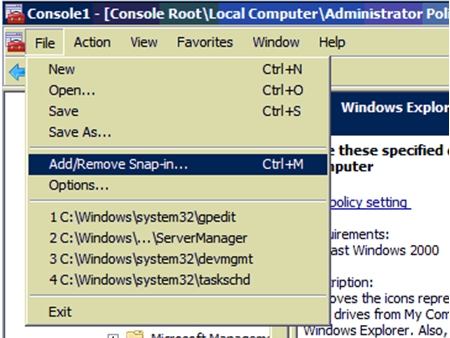
2. Tambahkan "Group Policy Object Editor" untuk kebijakan domain bawaan. biarkan Default GPO Local Computer. Anda juga dapat menambahkan GPO untuk partisi domain lainnya (khususnya, unit organisasi). Setelah menambahkan klik Finish dan OK.

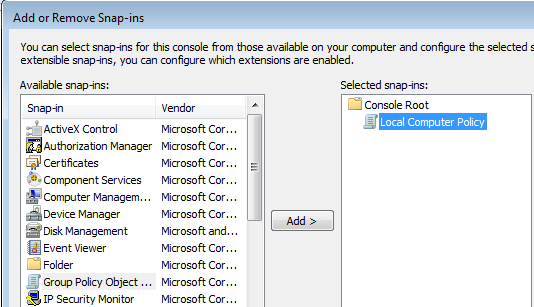
Maka akan muncul seperti gambar berikut.

3. Kemudian buka bagian berikut ini pada Local Computer Policy : User Configuration, Administrative Templates, Windows Components, and Windows Explorer.
4. Klik Hide these specified drives in My Computer.

5. Klik Enable untuk mengaktifkan, Pada kolom Option, Pilih drive mana yang akan di sembunyikan, misal Redistrict C Drive only Klik Apply dan OK.

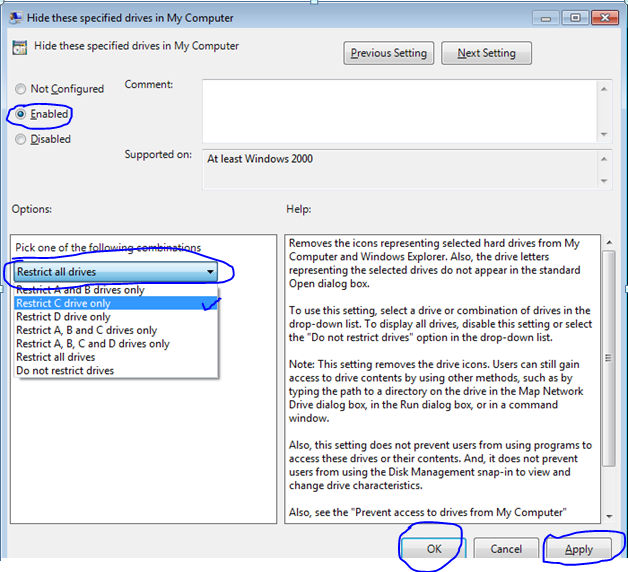
6. Restart komputer, maka drive yang disembunyikan tidak akan tampak di explorer.
Terimakasih telah berkunjung keblog saya.
jangan lupa komentarnya ya.Available link for download

Tuesday, January 31, 2017
Important Tips for Restoring an Unbootable Hard Drive
Important Tips for Restoring an Unbootable Hard Drive

Have you ever tried to restart a machine only to find it won’t boot? For whatever reason, you get a warning message informing you that disaster might well have struck… and you’re staring in the face of what could be a very bad day. Well, don’t panic yet. There are a few tricks you can try that may get that machine booted
. All is not lost until you know, with 100 percent certainty, that the drive will not boot — and even then, you can possibly recover your data. Here are some tips that can help you to get that drive booted and your machine recovered.
1: Boot from a restore disk
With many operating systems, restore disks can be created and used to deal with such disasters. The problem with this usually arises because the user hasn’t made a restore disk. I always tell users that one of the first things they should do when they get a new computer or install a fresh operating system is create a restore disk and then put it somewhere safe. That disk can really save your hide — especially in cases such as an unbootable drive. Now, every operating system approaches the restore disk differently. For example, some Linux distributions, such as Ubuntu 11.04, let you use the Live disk as a restore disk. So even if you didn’t create a restore disk, you can just download the same release that’s installed on the machine and use that as your restore.
2: Use the install disk
If you didn’t create a recovery disk in Windows, but you have the full installation disk, you’ll be okay. Those disks include recovery tools that can be accessed by pressing R at the Welcome To Setup screen. The tools let you fix boot problems, restore the hard drive from image, diagnose memory, and perform system restore. Note: The system restore typically can work only if the system restore partition is intact.
3: Get to know BartPE
There are tools… and then there is BartPE. BartPE is a huge challenge to build. But once you have it, you have a serious tool for fixing serious problems. Bart E creates a complete, preinstalled Win32 environment on your hard drive that allows you to use many of the tools available for repair. You to run check disk on your drive, which could easily solve your problem.
4: Rebuild the MBR
In many instances, the problem is a corrupt master boot record (MBR). If that’s the case, the MBR needs to be rebuilt. This process will vary, depending upon the operating system you use. With Windows 7, the necessary tool is Bootrec.exe, which can be found in the Windows Recovery Environment. If the operating system uses Grub 2 and the boot loader was lost after a Windows installation (with the intent to dual-boot), there is a tool called Grub4dos, which can certainly be a lifesaver. If no Windows environment is on the machine, grab that Live CD and you’ll have all the tools you need to rebuild your Grub boot loader. The specific tool you want is grub-install, and to rebuild the grub menu, update-grub.
5: Remove the drive
If all else fails, pull out the drive from the machine, attach it to a machine known to run, and see if the drive can be seen at all. It is possible that the reason the drive will not boot is due to physical damage. If the drive can be seen but not accessed, most likely the partition table has gone corrupt. But if the drive can’t even be seen, especially using a Linux machine to view it, the drive might well be physically damaged. If the drive can be seen and accessed, the problem is probably the MBR. I would highly recommend that at this point, you copy your data over to another drive — just in case.
What has saved you?
There are plenty of ways to recover that unbootable drive, but the techniques above have always brought me the most luck. What about you? If you’ve found a more reliable or efficient way to recover a drive that refuses to boot, share it with your fellow .
Available link for download
Thursday, December 29, 2016
LG Optical Drive Service Manual
LG Optical Drive Service Manual

This service manual provides a variety of service information. It contains the mechanical structure of the LG Optical Disc Drive and the electronic circuits in schematic form.
Download
LG GSA H20A Super-Multi DVD Rewriters Service ManualLG GSA H20L Super-Multi DVD Rewriters Service Manual
LG GSA H20N Super-Multi DVD Rewriters Service Manual
LG GWA 4164B DVD/CD-RW Drive Service Manual
LG GWA 4166B DVD/CD-RW Drive Service Manual
LG GDR-8162B DVD-ROM Service Manual
Available link for download
Monday, December 19, 2016
Install Windows 7 Gagal Load Driver A Required CD DVD Drive Device Driver Is Missing
Install Windows 7 Gagal Load Driver A Required CD DVD Drive Device Driver Is Missing

anda mungkin sudah pernah mengalami ketika instal windows pada saat proses Instalansi windows tiba tiba muncul jendela dengan tulisan "load driver"A Required CD/DVD Drive Device Driver Is Missing,yang artinya pada proses Install Windows Gagal menemukan driver yang diperlukan dalam proses instalasi atau windows meminta driver lebih dulu.disini kita akan membahas beberapa faktor penyebab dan solusi dari permasalahan windows [A Required CD/DVD Drive Device Driver Is Missing]
- Yang pertama Pengaturan pada bios,silahkan anda cek pengaturn pada bios anda dengan cara menekan tombol F1, F2, F10, tombol Delete (del) atau tombol Escape (ESC) atau dengan tombol kombinasi Fn + F2. silahkan disesuaikan dengan merk laptop atau netbook anda. setelah anda berhasil masuk kedalam menu bios kemudian anda Klik Menu booting pilih boot device priority seting sesuai dengan device yang akan anda gunakan untuk instalasi windows anda (dari dvd/Usb flasdisk).langkah berikutnya klik menu advance pada bios Ubah driver dari SATA ke AHCI. atau Matikan menu SATA alihkan ke AHCI,kemudian anda save dan restart laptop anda. kemudian silahkan anda coba untuk memulai installasi windows lagi.
- Yang kedua faktor penyebab gagalnya instalasi windows 7 bisa disebabkan oleh rusaknya file instalasi windows yang anda gunakan.solusinya buat cd instalasi yang baru.
- Yang ketiga kurangnya catu daya listrik yang diperlukan oleh device installasi (DVD room,usb flash disk,hardisk eksternal,dvd eksternal)solusinya pindahkan device satu persatu misalnya jika anda menggunakan dvd room internal anda bisa mencoba instalasi menggunakan flasdisk,atau jika anda menggunakan flashdisk dan ternyata masih keluar peringatan (Load Driver, A Required CD/DVD Drive Device Driver Is Missing) pindahkan flashdisk ke port lainnya.
- Yang keempat adalah kompabilitas port Usb dari laptop yang kita install, sekarang ini hampir rata rata laptop baru menggunakan slot usb 3.0 sementara flashdisk/usb eksternal yang kita gunakan biasanya hanya suport Usb 2.0 kebawah.solusi nya pindahkan port usb yang kita gunakan.
- yang kelima faktor penyebab gagalnya instalasi windows 7 dengan peringatan (Load Driver, A Required CD/DVD Drive Device Driver Is Missing) adalah laptop keluaran terbaru,solusinya bacalah manual book dari laptop tersebut apakah laptop yang kita install itu diperuntukan untuk windows 7 jika tidak langkah pertama yang harus kita lakukan adalah mencari driver sata AHCI dari laptop tersebut.kemudian kemudian ekstrak file driver tersebut kedalam satu folder silahkan anda simpan folder tersebut dengan flasdisk yang lain. selanjutnya lakukan proses instalasi lagi dengan memasukan flashdisk yang berisi file driver yang sudah kita ekstrak tadi kedalam port usb yang masih kosong,untuk langkah langkah instalasinnya akan saya jelaskan dilain kesempatan
dengan cara diatas mudah mudahan anda tidak menemui masalah lagi ketika Install Windows 7 Gagal, (Load Driver, A Required CD/DVD Drive Device Driver Is Missing).selamat mencoba
Available link for download
Saturday, October 1, 2016
Lock your PC with a USB flash drive
Lock your PC with a USB flash drive

PREDATOR is freeware utility that locks your PC when you are away, even if your Windows session is still opened. It uses a regular USB flash drive as an access control device. When you leave your PC you just take your USB drive with you and Predator will lock your PC. While you are away Predator records all security-related events in a log file. By reading this log, you will know if intruders have tried to use your computer while you have been away. When you return back to your PC, you put the USB flash drive in place and your PC will be unlocked.
Its easier and faster than closing your Windows session, since you do not have to retype your password when you return.
How to install Predator in your PC
- Download and extract Predator.zip
- Start InstallPredator.exe. When prompted for an installation folder, accept the default path "C:Program FilesPredator2" or select another folder on your hard drive, but do not select a folder on your USB flash drive. Never install PREDATOR on removable media.
- After installing run the application from Windows program menu or the desktop shortcut icon.
- You will get a message box like this

5. Insert your USB drive and click OK to continue.
Note: the current contents of your flash drive will be unchanged by this operation. Files on your
Note: the current contents of your flash drive will be unchanged by this operation. Files on your
USB drive will not be deleted nor modified in any way.
6. Then you see the Preferences window: Here you can set the screen darkness and other options by
checking in the check boxes.
checking in the check boxes.

- Type the password of your choice in the "New Password" field. You will use it to unlock your session if you lose your USB key.
- You must enter at least 6 characters, letters, figures or signs. The password is case sensitive (uppercase and lowercase letters are different).
- Check that the drive letter displayed under "USB key drive" actually matches your flash drive or choose the correct letter from the dropdown list.
- Click the "Create key" button
- Finally, click "Ok"
8. Finally, click the Predator icon installed on the desktop to restart the program. When you restart
Predator, initialization takes a few seconds, then a green ball icon should flash in the system tray.
If the Predator icon is blinking then everything you have done is OK.
Available link for download
Subscribe to:
Posts (Atom)